English
Requesting Production for All Orders
Request fulfill all sends every eligible order to production in a single click, instead of selecting them one at a time.
The button sits on the Unfulfilled tab of the Order page, and appears only while no order is selected. If you have ticked specific orders, the system takes that as your intent to push exactly those, and the button hides.
Note: this action charges your balance and cannot be undone. An order already sent to the factory cannot be recalled by clicking again. Read the confirmation dialog carefully before clicking Continue.
Choosing a date range
The confirmation dialog has a Date paid control to limit the scope by the order's payment date.
| Your choice | What gets pushed |
|---|---|
| No date selected | Every unfulfilled order, with no time limit |
| A date range selected | Only orders whose payment date falls inside that range |
When no date is selected, the dialog shows a red line stating that the whole backlog will be pushed. This is deliberate: the scope has to be visible before you click, not something you have to guess.
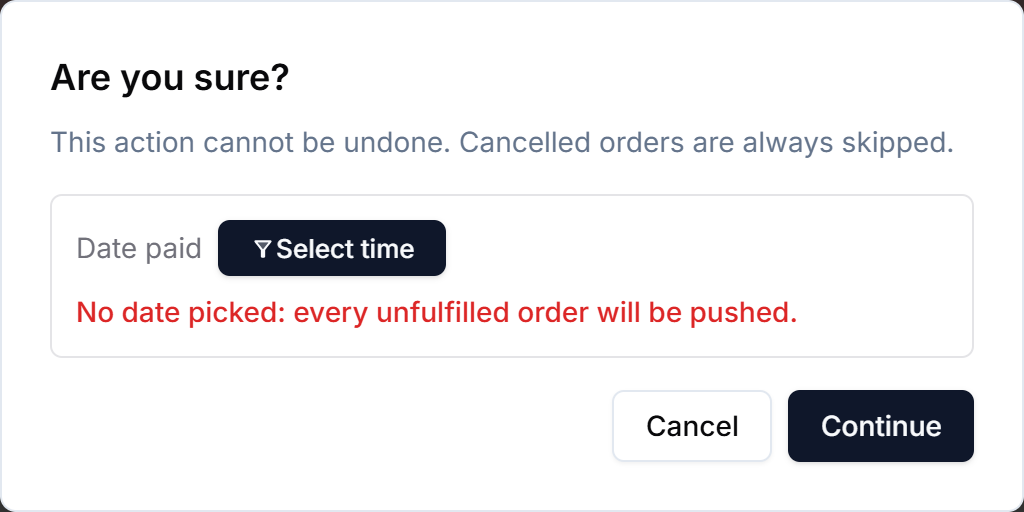
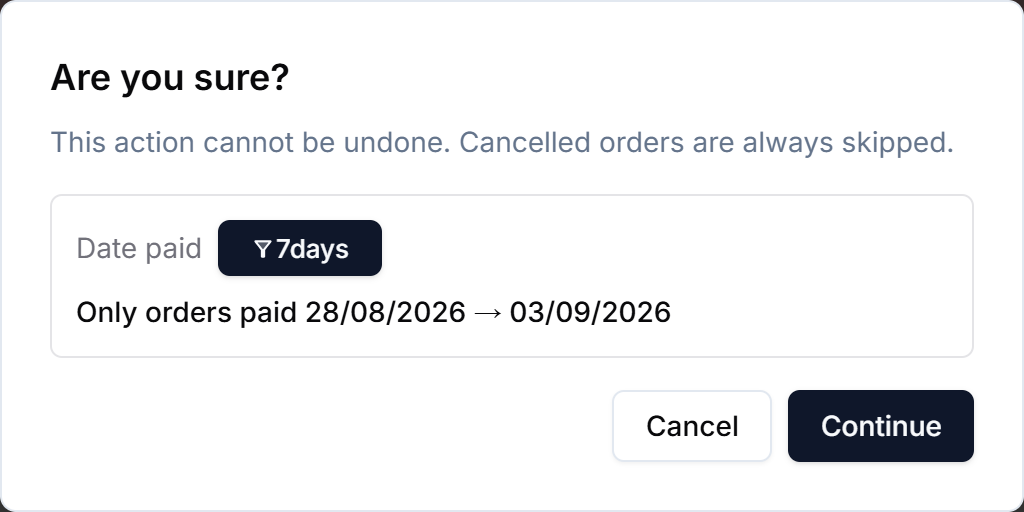
Quick presets are available — Today / Yesterday / 3days / 7days / 30days — or you can drag a range directly on the calendar. Once picked, the red line is replaced by the exact range that will apply:
Conditions for an order to be pushed
A line item must satisfy all of the following:
| Condition | Meaning |
|---|---|
| Fully paid | Payment status is paid. Orders that are pending, partially_paid or refunded cannot be pushed |
| Not yet sent to production | The order sits on the Unfulfilled tab |
| Not cancelled on Shopify | See Rules for cancelled orders |
| Still has units to produce | Remaining quantity is greater than zero |
| Has a design file | Every line in the order has a design attached |
| SKU is configured | The product's SKU exists in the Organization's SKU table |
At the Organization level as well:
- The Organization must have a seller code
- Balance plus credit limit must cover the total cost of the whole push
For design files and SKUs, the system evaluates the whole order, not each line separately. If an order has 3 products and only 1 is missing its design, all 3 are held back. The reason: shipping half an order creates a parcel that can never be completed for the customer.
Rules for cancelled orders
There are three different kinds of cancellation, handled differently. This is the easiest place to get confused, so the distinction comes first:
| Kind of cancellation | Who cancels | How you recognise it |
|---|---|---|
| Whole order cancelled on Shopify | The merchant or the customer, on Shopify | Red CANCELLED tag beside the order name, on the All tab |
| One product refunded or removed from the order | The merchant, on Shopify | Red icon in the Quantity column |
| The factory cancels | The production factory | Cancelled tab |
Here are all four states side by side on the All tab, for comparison:

| Order | State |
|---|---|
#INK1001 | Normal — no tag, no icon |
#INK1002 | Whole order cancelled on Shopify — CANCELLED tag and a red icon |
#INK1003 | Only this product was fully refunded — red icon, and no tag because the order itself is still alive |
#INK1004 | Partial quantity refunded (3 ordered, 2 remaining) — yellow icon |
1. The whole order is cancelled on Shopify
When an order is cancelled on Shopify, Inkble records the cancellation time and locks that order out of every production path:
- Cannot be pushed with Request fulfill all
- Cannot be pushed with Request fulfill by hand
- Cannot be pushed with Re-fulfillment
The order also disappears from the Unfulfilled tab, because leaving it there invites you to attempt something guaranteed to fail. You will still find it on the All tab, carrying a red CANCELLED tag.
Mark as fulfilled does still work on a cancelled order. That action sends nothing to the factory — it simply marks the order so you can clear a dead one out of your working list.
Inkble learns the cancellation through a webhook from Shopify, including the case where the merchant refunded the customer while cancelling.
2. One product in the order is refunded or removed
On Shopify, refunding or removing a single product from an order is not a cancellation — the order is still alive, only that product no longer needs producing.
Inkble handles this at the individual line item level:
| Situation | Result |
|---|---|
| Order has 3 products, 1 fully refunded | That product is skipped, the other 2 are still pushed to production |
| Every product in the order is refunded | Nothing left to push, the whole order is skipped |
A product with no units left also no longer appears on the Unfulfilled tab, so what Request fulfill all pushes always matches what you see on screen.
If you tick a product with no units left and click Request fulfill by hand, the system refuses the whole batch and names each ineligible line with its reason. This is deliberate: when you point at specific orders, the system does not quietly drop part of your selection.
3. A partial quantity is refunded
This covers a customer ordering several of the same product and only part of it being refunded — for example 3 ordered, 1 refunded, 2 remaining. This is rare in practice, but worth knowing because it affects cost.
Please note: in the current version, the system still pushes the original quantity (3) to production rather than the remaining quantity (2). Cost is also calculated on the original quantity.
So for orders showing a yellow icon in the Quantity column — the sign that quantity has dropped but not to zero — please verify the quantity before pushing, or contact the support team for individual handling.
What the two icons in the Quantity column mean:
| Icon | Meaning |
|---|---|
| Red | Every unit was refunded or removed from the order — nothing left to produce |
| Yellow | Quantity has dropped but units remain — see the note above |
| No icon | Quantity is unchanged from what the customer ordered |
Telling this apart from a factory cancellation
The Cancelled tab shows orders cancelled by the factory (status cancel-produce or cancel-ship), which is an entirely different thing from an order cancelled on Shopify.
| Cancelled on Shopify | Cancelled by the factory | |
|---|---|---|
| When it happens | Before production | After the order was sent to production |
| Where it shows | CANCELLED tag on the All tab | Cancelled tab |
| Can it be pushed again | No | See Updating orders with errors |
The report after pushing
After you click Continue, the system shows the result: how many orders went through, and the orders that were held back, with the reason for each:
| Reason code | Meaning | What to do |
|---|---|---|
ORDER_CANCELLED | The order was cancelled on Shopify | Nothing needed. You may use Mark as fulfilled to clear it from the list |
NO_QUANTITY_LEFT | Every unit of the product was refunded or removed from the order | Nothing needed |
MISSING_DESIGN | The order is missing a design file | Attach the design, then push again |
SKU_INVALID | The SKU is not configured in the Organization | Add the SKU to the SKU table, then push again |
INSUFFICIENT_BALANCE | Balance is not enough | Top up your balance. The push is not partial — either the balance covers the whole batch, or no order is pushed |
NO_SELLER_CODE | The Organization has no seller code | Contact support |
Orders held back for being cancelled or having no units left are counted once, never twice. A line that is both cancelled and empty counts only under cancelled, because that is the more useful thing for you to know.
If you encounter any issues related to requesting production for your orders, please contact Inkble's support team via Telegram or Facebook for assistance.