English
Configure Group SKU
Note: This is an advanced system feature. To use this feature, please contact Inkble Customer Support for access permission and detailed guidance.
This feature allows a single SKU to represent multiple child SKUs.
When the system receives a Fulfillment request containing a Group SKU, it will automatically split the Group SKU into the configured child SKUs and quantities based on the setup.
To manually create a Group SKU, navigate to Settings → Group SKU and click Add.
Then, enter the required information in the Add Group SKU window.
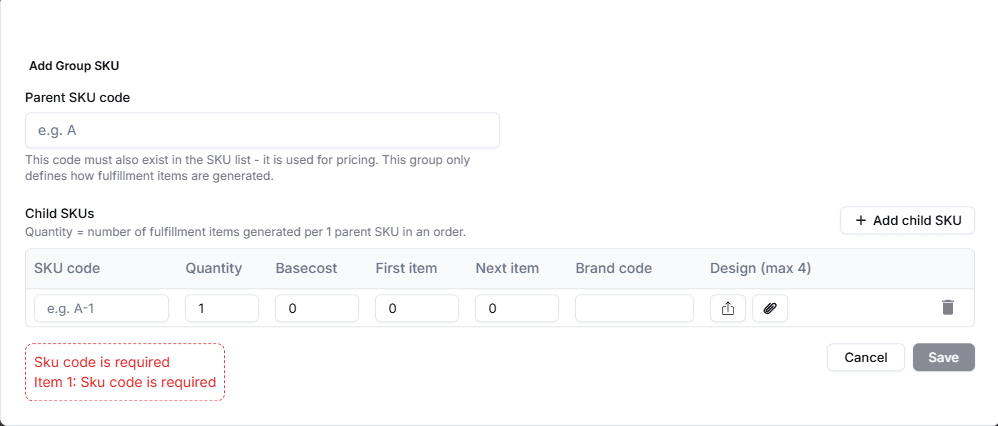
- Parent SKU Code: The SKU used as the Group SKU.
- SKU Code: The child SKU.
- Quantity: Defines the quantity of the child SKU included in each Group SKU.
- Base Cost: The base cost of the child SKU.
- First Item: The first item cost of the child SKU.
- Next Item: The next item cost of the child SKU.
- Brand Code: The brand code associated with the child SKU.
- Design (Max 4): Upload design files for each child SKU. When an order containing the Parent SKU is processed, the system will automatically prioritize using the designs configured here for the corresponding child SKU (if available).
Note: Each child SKU can be assigned up to 4 design files.
In addition, you can create multiple Group SKUs in bulk using an Excel file. On the Group SKU screen, click Import.
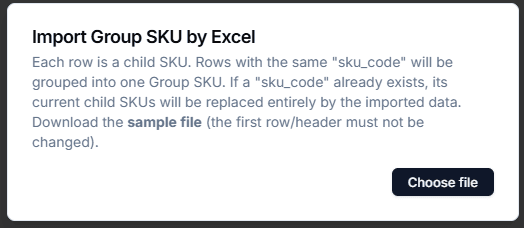
Click Sample File in the import window to download the template file. After filling in the required information, click Choose File to select the file for upload.
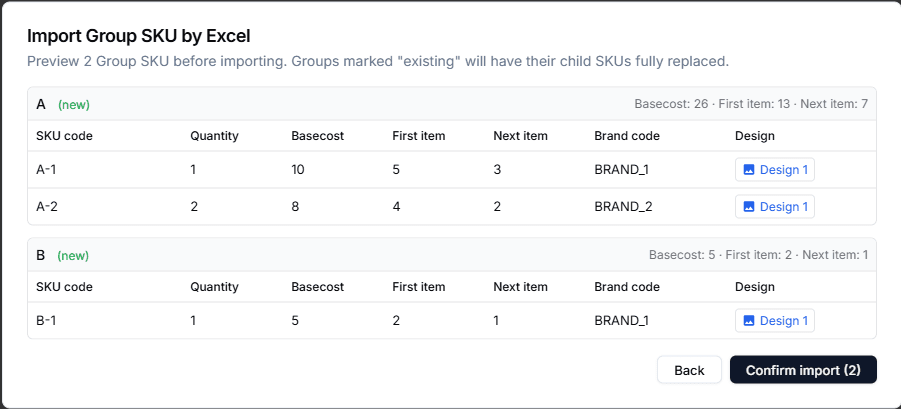
Before importing the file into the system, you can review the data in the Preview screen. Once all information has been verified, click Confirm Import to import the file into the system.
If you encounter any issues while setting up Group SKUs, please contact Inkble Support via Telegram or Facebook for assistance.